How to Automate Daily Purchase Tracking on iPhone
Everyone who has tried to track their spending knows the pattern. The first week, every coffee gets logged. The second week, a few slip. By the third week, you are trying to reconstruct Tuesday from memory, and by the fourth, the app is in a folder you never open. The problem is not discipline. It is that manual tracking asks you to remember something dozens of times a week.
This guide shows how to automate daily purchase tracking on iPhone, so most purchases log themselves and the rest take seconds. It is a one-time setup: turn on the right alerts, let card purchases record themselves, capture everything else from the screen or a receipt, and keep your totals visible without opening an app. No bank connection is required. If you want the habit side of tracking first, see our guide to tracking daily spending.
What "automated" can and cannot mean
Automation in personal finance usually means one of two things, and they are very different:
Bank sync. Apps like Monarch and Copilot connect to your bank through an aggregator and import transactions. It is hands-off once set up, but transactions arrive one to three days late, connections break, categories are often wrong, and you are sharing bank credentials with a third party.
Capture at the moment of purchase. Instead of pulling data from the bank later, purchases are recorded as they happen, from the payment itself, the screen, or the receipt. It is faster, it records the real store name, and nothing is linked.
Neither is magic. Bank sync automates the import but still needs categorizing and fixing. Capture at purchase needs a one-time setup and a quick confirmation. The goal is not zero effort. It is removing the remembering, which is the step that kills every tracking habit.
Step 1: Turn on purchase alerts for every card
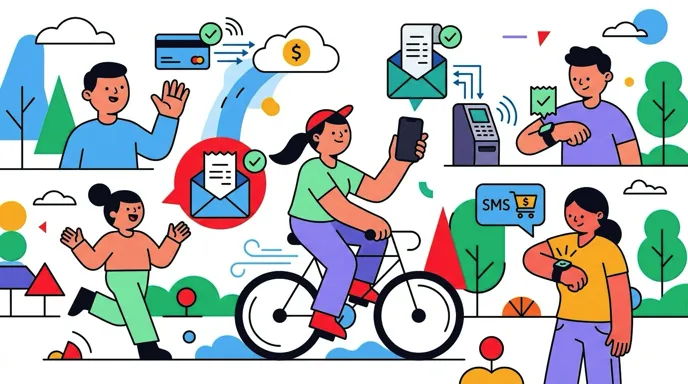
Before automating logging, make sure every purchase announces itself. Open each card's app and set transaction alerts to the lowest threshold, ideally $0, delivered as push notifications.
This does two things. Each alert is a nudge to log the purchase if it did not log itself. And alerts catch fraud within minutes instead of weeks.
If one of your cards does not offer alerts, it is the card most likely to break your tracking. Our guide to tracking a credit card that doesn't send notifications covers how to handle it.
While you are in each card's app, check two more settings: alerts for online and card-not-present purchases, which some issuers list separately, and alerts for international transactions if you travel. It is also worth turning off promotional notifications from the same apps, so the alerts that matter are not buried. Ten minutes here makes every later step more reliable.
Step 2: Let Apple Pay purchases log themselves
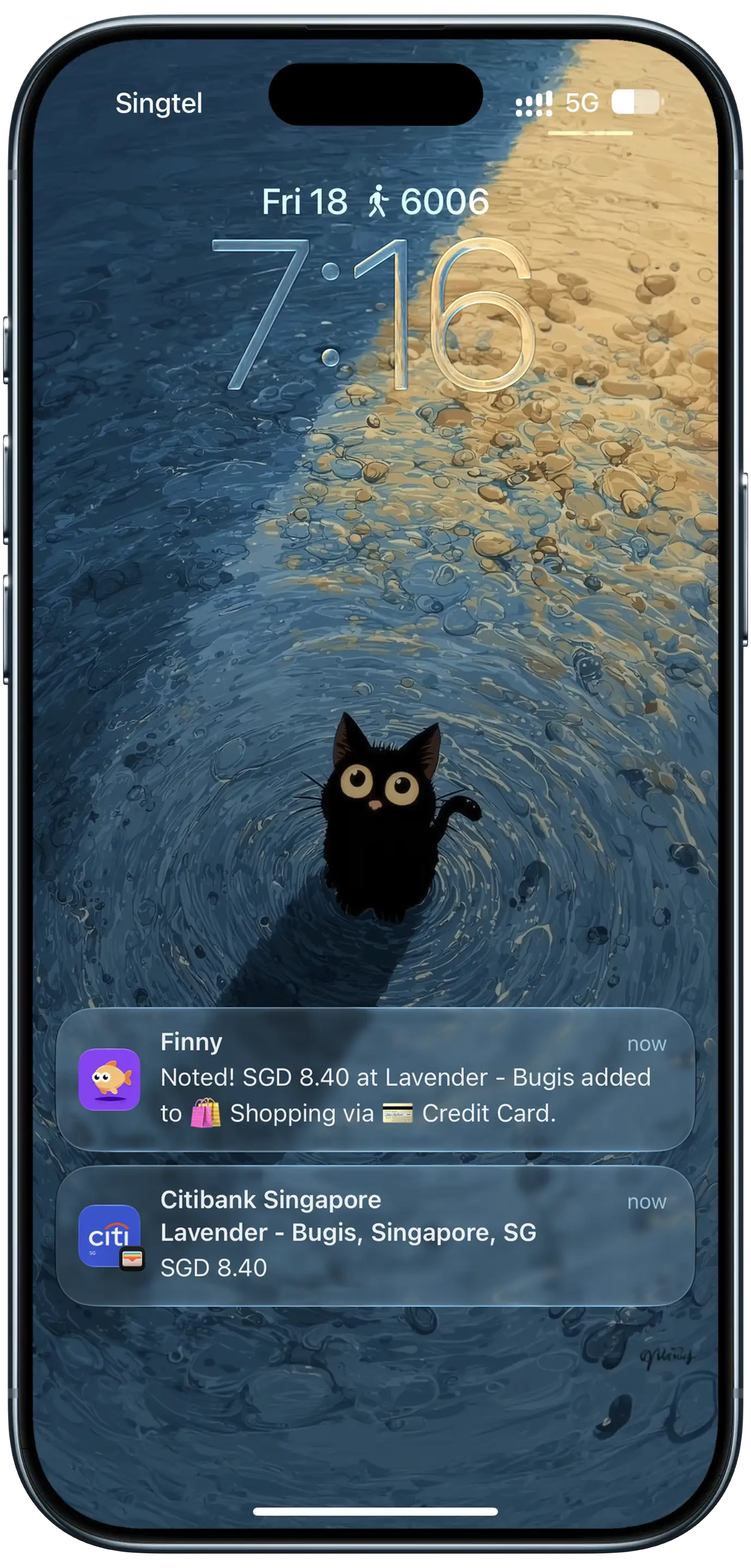
Finny app's Tap to Track feature
For most iPhone users, Apple Pay covers a large share of daily spending: coffee, groceries, transit, lunch. That makes it the biggest single win for automation.
Finny handles this with Tap to Track. After a short guided setup in the app, each Apple Pay purchase records itself with the amount, merchant, and date, right as you pay. You do not open anything. If a payment arrives without enough detail to log, it is not lost: it waits in History so you can complete it with a tap. Our guide on how to automatically track Apple Pay goes deeper on what gets captured. Because Apple Pay usually covers the small, frequent purchases, automating it removes most of the logging people tend to forget.
Here is Tap to Track in action:
Step 3: Capture everything Apple Pay misses
Not everything goes through Apple Pay. Online orders, cards you swipe or insert, Venmo transfers, and bills paid from a bank app all need another route. The fastest ones avoid typing:
- Online orders and app payments: with Screen Log, a payment showing on your screen, like an order confirmation or a transaction in a card app, logs in one press. Several on screen are staged for your review instead of guessed.
- Paper receipts: snap the receipt and AI reads the store, total, and date. Several receipts can be scanned at once.
- Cash and quick buys: type it like a message, "parking 12," or say it out loud, and AI turns it into an entry. Our guide to logging expenses by text shows how.
- Recurring bills: set rent, phone, streaming, and insurance up once as recurring expenses with reminders, so they never need logging again.
Together with Tap to Track, these cover nearly every way money leaves your account, and none of them need a bank login.
Step 4: Make your totals visible without opening an app
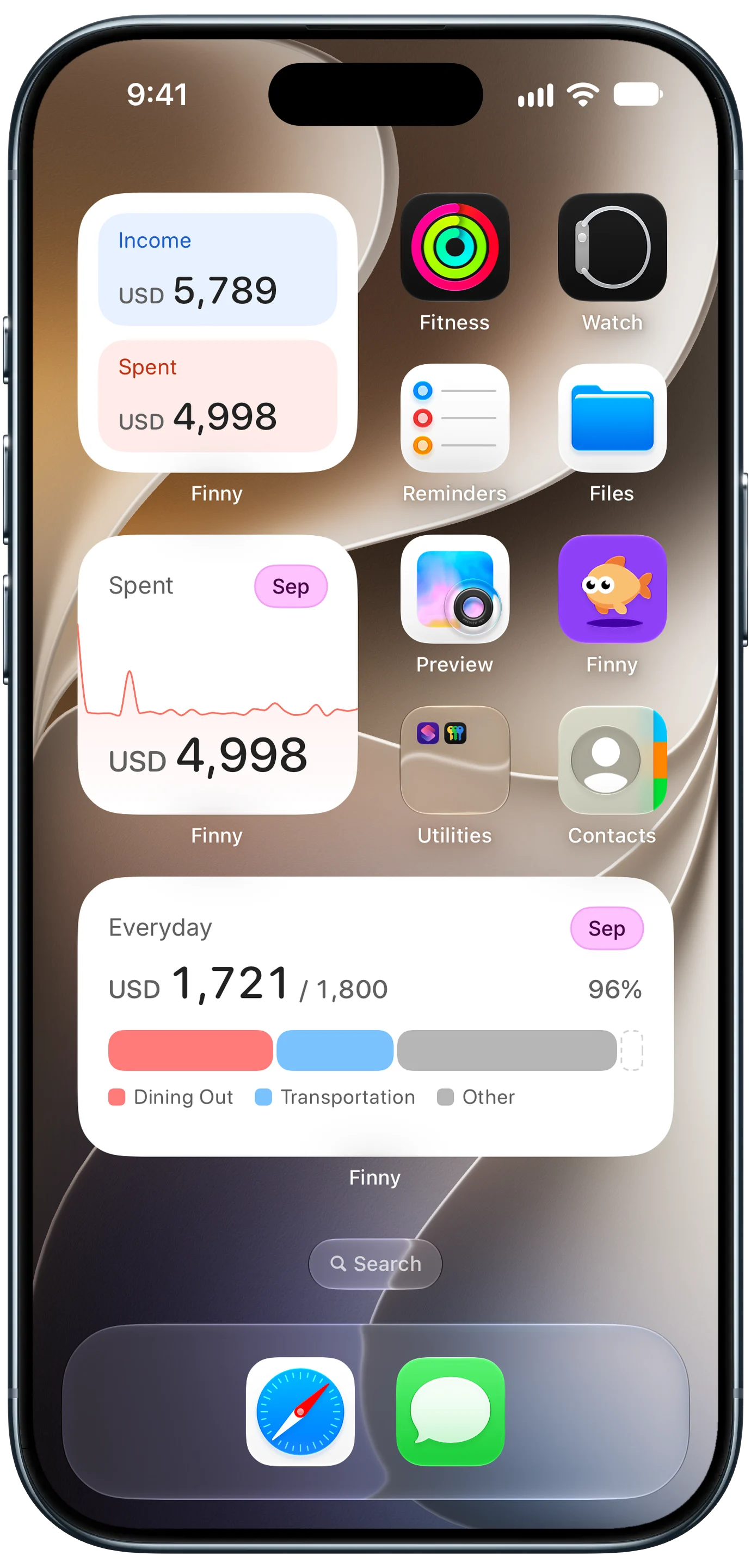
Finny app's Home Screen widgets feature
Automation removes the logging. Visibility keeps you engaged. If you have to open an app to see your spending, you will check it less often than you mean to.
Add spending widgets to your Home Screen or Lock Screen: today's total, this week's trend, and how much is left in your main budget. You see your spending every time you unlock your phone, without trying.
Then add a daily reminder at a fixed time, like 9 p.m. It is not there to make you log everything. It is a ten-second check: does today's total look right? If you bought something that did not log, you will notice while you still remember it. Our guide to iPhone Home Screen budgeting has layout ideas.
A daily routine that takes under a minute
Once set up, here is what automated daily tracking looks like in practice:
| When | What happens | Your effort |
|---|---|---|
| You pay with Apple Pay | Purchase logs itself | None |
| You order online | One press on the confirmation screen | 2 seconds |
| You get a paper receipt | Snap it, or batch them later | 5 seconds |
| You pay cash | Type or say "lunch 12" | 5 seconds |
| A bill is due | Reminder, already scheduled | None |
| 9 p.m. | Glance at today's total | 10 seconds |
| Sunday | Skim the week, fix any category | 2 minutes |
That is the difference between automated tracking and a tracking habit: you are not remembering to log. You are only confirming. For a side-by-side of apps that automate tracking in different ways, see our roundup of the best automatic expense trackers.
Frequently Asked Questions
Can I automatically track my daily spending without linking my bank?
Yes. On iPhone, Apple Pay purchases can be logged automatically as you pay, and payments shown on your screen or on receipts can be captured in a second or two. Combined with recurring bills, this covers most daily spending without connecting any bank or card account.
What is the easiest way to track daily purchases?
Automate the biggest source first. For most iPhone users, that is Apple Pay, so let those purchases log themselves. Then use one-press capture for online orders and receipts, and quick text or voice entry for cash. Add a widget so your totals stay visible.
Is automatic expense tracking accurate?
Capture at the moment of purchase is usually more accurate than bank sync, because it records the real store name and exact amount right away. The weak spot is categorization, so review your week once and fix anything miscategorized. Good apps let you confirm entries before they are saved.
How long does it take to set up automated tracking?
About 15 minutes: turning on card alerts, completing the guided Apple Pay setup in your tracker, adding recurring bills, and placing a widget. After that, daily effort drops to a few seconds per purchase that does not log itself.
The bottom line
To automate daily purchase tracking on iPhone, stop relying on memory. Turn on alerts for every card, let Apple Pay purchases log themselves, capture online orders and receipts in a press or a snap, schedule recurring bills once, and keep your totals on your Home Screen. The setup takes an evening. After that, tracking stops being a habit you have to keep and becomes something that simply happens.