
Best Money Shortcuts for iPhone in 2026
Tracking money fails for one boring reason: the gap between spending and recording is too wide. By the time you unlock the phone, find the app, and tap through a few screens, the coffee is forgotten and so are the next two purchases. The fix is not more discipline. It is a shortcut that fires in two seconds, every time, the same way.
This is a roundup of the best money shortcuts for iPhone, each built to close that gap. Every shortcut below links to a full tutorial, so treat this page as the map and the tutorials as the turn-by-turn directions. Pick one trigger, wire it up, and let it become a reflex. For the widest menu of ideas first, see our guide to Apple Shortcuts for expense tracking.
One honest note before the list. Most of these shortcuts write into whatever app or sheet you already use, so they are tool-agnostic by design. A few finance apps also publish their own Shortcut actions: Finny, for example, exposes ready-made actions plus a maintained Tap to Track that catches Apple Pay purchases, so you can either build your own or borrow one that stays fixed for you.
Start Here: The Tap-and-Type Shortcut
This is the foundation the rest build on. A single shortcut, built in the Shortcuts app, asks for an amount, offers a menu of categories, and writes one clean row to your destination. Build it first, because every trigger below just launches it in a different way. It is best for anyone who wants full control over where the data lands. Follow the iPhone expense tracker shortcut tutorial, then come back and pick a trigger.
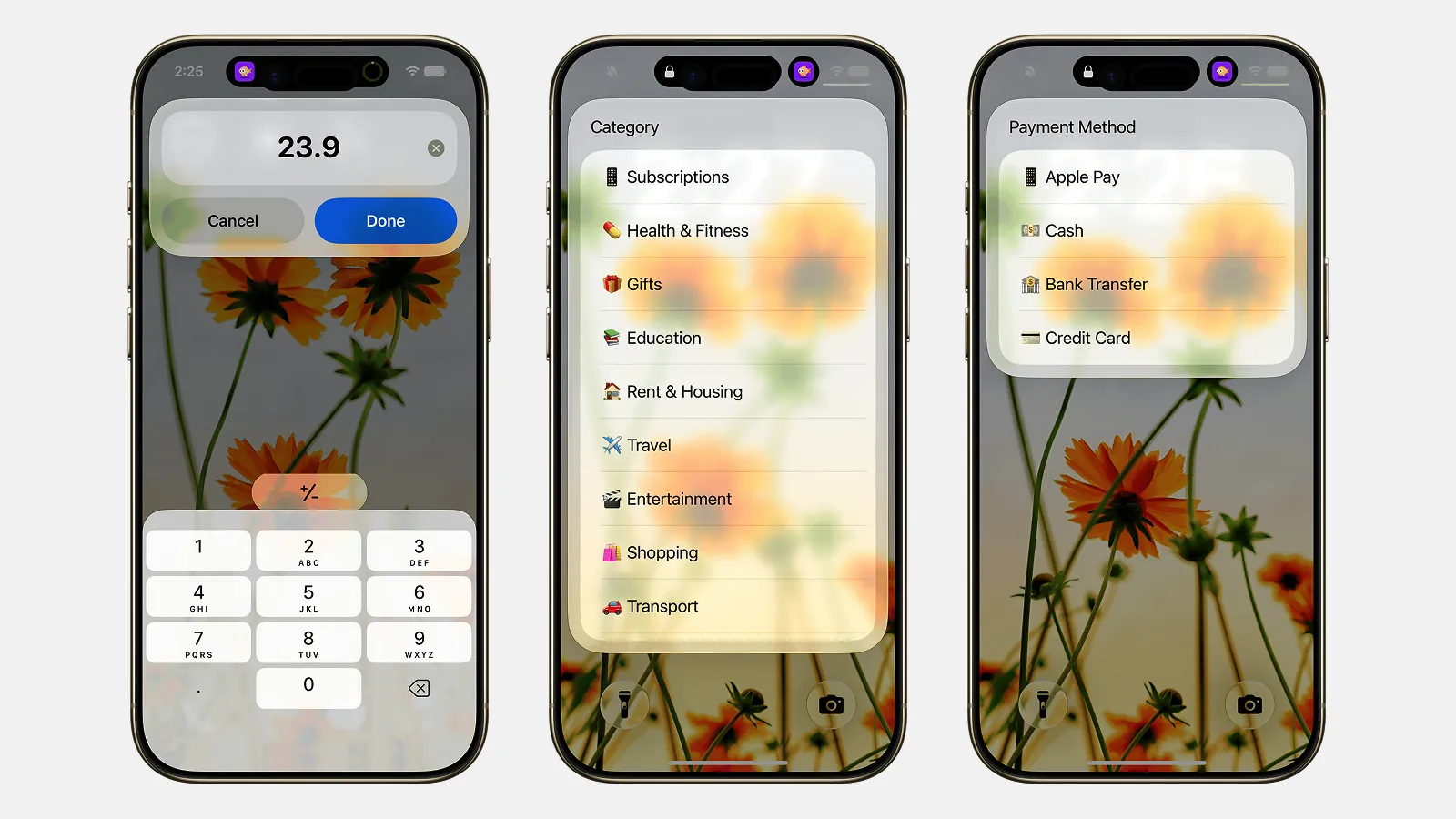
Finny app's Quick Log feature
The Fastest Triggers
Once the core shortcut exists, the trigger decides whether you actually use it. These are the quickest ways to fire it without hunting through your Home Screen.
Log by Voice with Siri
Say "Hey Siri, Log Expense" and answer the prompts out loud. No screen, no typing, hands free while you are still holding the bags. Best for logging while driving, cooking, or walking out of a shop. Full setup is in our log expenses with Siri guide.
Tap an NFC Tag
Stick a programmable NFC sticker on your wallet, card, or car dash, then attach your shortcut to it in Shortcuts Automation. Tap the phone to the tag after you pay and the entry starts itself. Best for people who pay in the same place often. See the NFC expense tracker shortcut walkthrough.
Back Tap
Double or triple tap the back of your iPhone to fire the shortcut, with nothing stuck to your phone and no button to find. It works on every recent iPhone and stays invisible until you need it. Great for a discreet, no-hardware trigger. Set it up with our Back Tap expense logging guide.
Action Button
On iPhone 15 Pro and newer, bind your logging shortcut to the Action Button on the side. One firm press and the amount prompt is already open. Best if you own a recent Pro model and want the most deliberate one-press trigger available. Follow the Action Button expense tracker setup.
Capture Without Typing
Some purchases are easier to photograph than to type, especially long grocery or restaurant receipts.
Scan a Receipt
This shortcut opens the camera, scans a receipt, pulls out the total, and files it away, so a whole basket becomes one accurate entry. Best for grocery runs, business expenses, and anything you need a paper trail for. Build it with our scan receipts with Apple Shortcuts tutorial.
Send It Where You Already Work
If you already live in a spreadsheet or a Notion database, the smart move is to log straight into it rather than move your data somewhere new.
Log to Notion
This shortcut appends each expense as a new row in your Notion finance database, ready for your existing formulas and views. Best for Notion power users who want capture speed without leaving their system. Here is the add expenses to Notion guide.
Log to Google Sheets
A shortcut that pushes each entry to a shared Google Sheet is ideal when you track money across devices or with a partner. Everyone sees the same live sheet, and your formulas do the math. Best for collaborative budgets. Follow our log expenses to Google Sheets tutorial.
Log to Apple Numbers
For a fully on-device, offline option, this shortcut adds a row to a Numbers spreadsheet with no cloud account required. Best for privacy-minded users who want their data to stay on the iPhone and sync only through iCloud. See the track expenses with Apple Numbers walkthrough.
Let It Fire Itself
The last shortcut removes even the tap. A personal automation watches for you to open a store or banking app, then launches your logging shortcut automatically, so the prompt appears right when a purchase is likely. Best for people who forget to trigger anything. Set it up with our auto-log spending when you open an app guide.
Compare the Shortcuts at a Glance
| Shortcut | Trigger | Best for | Difficulty |
|---|---|---|---|
| Tap-and-type expense | Home Screen tap or widget | Full control over the data | Easy |
| Siri voice logging | Voice command | Hands-free capture | Easy |
| NFC tag | Tap phone to a sticker | Same-place purchases | Medium |
| Back Tap | Double or triple tap the back | Discreet, no hardware | Easy |
| Action Button | One press of the side button | iPhone 15 or 16 Pro owners | Easy |
| Receipt scan | Camera scan | Groceries and business expenses | Medium |
| Log to Notion | Runs from any trigger | Notion power users | Medium |
| Log to Google Sheets | Runs from any trigger | Shared or cross-device budgets | Medium |
| Log to Apple Numbers | Runs from any trigger | Offline, on-device tracking | Easy |
| Open-a-store-app automation | App launch detected | People who forget to log | Medium |
Notice the pattern: the destination shortcuts (Notion, Sheets, Numbers) all run from any trigger above. Pick one destination and one trigger and you have a complete system.
The Habit Is the Point
Every shortcut here serves one goal: shrink the time between spending and recording to a couple of seconds. A messy log you keep beats a perfect system you abandon by Friday. Start with one trigger you will genuinely use, and let it become automatic before you worry about analysis. Our guide to logging an expense in seconds is a good gut check on which trigger fits your day.
When You Would Rather Skip the Maintenance
DIY shortcuts are free and they teach you exactly what is happening under the hood. The trade-off shows up within weeks: you still categorize every entry, a sheet gives you no running totals, and it quietly breaks when you rename a column or update iOS.
If that upkeep sounds like a chore, the maintained option is to let an app publish and update the shortcut for you. Finny ships the same tap-and-type entry and the same automatic Apple Pay capture, adds AI categorization and running totals, and keeps the shortcut working when iOS changes underneath it. It is free to start, needs no bank connection, and works offline. Download it from the App Store and the shortcuts are ready to set up inside the app, with no file to re-download when it changes.
Either path is valid. Build your own and own the maintenance, or borrow a maintained one and never think about it again.
Frequently Asked Questions
What is the best money shortcut for iPhone to start with?
Start with the core tap-and-type expense shortcut, then attach whichever trigger fits your day. Every other shortcut on this list builds on it, since Siri, NFC, and the Action Button all just launch that same shortcut. Build it once, pick one trigger you will actually use, and you have a working two-second logging habit before you add anything more advanced.
Do these iPhone money shortcuts work offline?
It depends on the destination. Shortcuts that write to on-device targets like Apple Numbers, Notes, or a local finance app work with no internet at all. Shortcuts that log to a cloud service such as Google Sheets or Notion need a connection to sync, though they can often queue the entry and send it once you are back online. Choose an on-device destination if reliability without signal matters most.
Which trigger is fastest for logging expenses?
Voice with Siri and the Action Button are the two fastest in practice. Siri wins when your hands are full, because you never touch the screen. The Action Button, on iPhone 15 Pro and newer, is fastest when the phone is already in your hand, since one press opens the prompt instantly. Back Tap is a close third and works on almost every recent iPhone with no extra hardware.
Can I use more than one money shortcut at the same time?
Yes, and most people should. A common setup pairs one fast trigger with one destination: for example, Siri voice logging that writes into a Google Sheet, plus a receipt scanner for grocery runs. Triggers and destinations mix freely, because the destination shortcuts run from any trigger. Just avoid wiring three overlapping triggers to one action, which tends to create confusion rather than speed.
Are Apple Shortcuts safe to use for money tracking?
Yes. Shortcuts run locally on your iPhone and only touch the data and services you explicitly connect them to, so a Numbers or Notes shortcut never leaves your device. Cloud destinations like Sheets or Notion use the same secure connections those apps already use. As with any automation, review what a downloaded shortcut does before running it, and favor ones you build yourself or that come from an app you trust.
The Bottom Line
The best money shortcut is the one you will actually use, so choose by trigger, not by feature list. Pick voice, a tap, or a button, build the core shortcut once, and point it at a destination you already live in. That single decision turns tracking from a chore into a two-second reflex. If maintaining it ever gets old, hand the job to an app that keeps the shortcut working and sorts the entries for you. For the full set of ideas, circle back to our Apple Shortcuts for expense tracking guide. If you would rather compare the apps behind these shortcuts, see Finny vs Toshl vs Lunch Money, and for the same trick applied beyond money, the 2-second log-anything shortcut.