Turn Bank Transaction Alerts Into an Expense Tracker
Your bank already knows about every purchase seconds after it happens, and most banks will tell you, if you ask. A transaction alert on your lock screen has the amount, the store, and often the card. That is everything a budget needs, delivered in real time, for free.
The problem is what happens next. You glance at the alert, swipe it away, and the purchase never reaches your budget. This guide shows how to turn bank transaction alerts into an expense tracker: how to turn on push alerts at Chase, Bank of America, Wells Fargo and Capital One, how to make them fire for every purchase where the bank allows it, how to clean up the alert stream so only payments come through, and how to turn each alert into an entry in your expense tracker on iOS 27 without a bank connection. If you have a card that sends no alerts at all, our guide to tracking a credit card that doesn't send notifications covers that case.
Why bank alerts beat bank sync for tracking
Most budgeting apps get your transactions by connecting to your bank through a data aggregator. That works, but it comes with tradeoffs: you hand over a bank login, connections break and need re-linking, and new transactions often arrive a day or more after you pay.
Transaction alerts work the other way around. The bank pushes the purchase to you, usually within seconds of the card being approved. Nobody else needs your login, and nothing has to stay connected. The alert is also the moment you actually care about: right after you pay, while you still remember what the purchase was for.
The weakness of alerts has always been that they disappear. They tell you about a charge but do nothing with it. You get a stream of "You made a $14.20 purchase" messages and still no idea how your grocery budget is doing. Our guide to tracking credit card spending in real time explains why alerts alone rarely add up to a budget.
So the plan has two steps. First, make your bank send an alert for every transaction you care about. Second, make each of those alerts land somewhere that keeps totals.
How to turn on transaction alerts at four big US banks
Each bank organizes alerts a little differently, and menu names change between app versions. The paths below come from each bank's own help pages; if your app looks different, look for an Alerts or Notifications section under your profile.
For every bank, choose push notification as the delivery method. Text and email alerts are fine for fraud protection, but a push alert from the bank's app is the one that shows up on your iPhone right away.
How to turn on Chase transaction alerts
In the Chase Mobile app, tap the person icon, then Alerts & messages, then Manage alerts. Chase offers alerts for charges, refunds and other transactions, payments, balances, and deposits, delivered by push, text or email. According to Chase, you can set transaction alerts to notify you for every purchase, or only for transactions over a certain amount. For tracking, choose every purchase.
One change to know about: Chase retired its "international charge posted" and "online, phone or mail charge authorized" alerts in February 2026. Chase says its other alerts keep working, including a transaction alert for charges above an amount you choose.
How to turn on Bank of America alerts
In the Bank of America app, alerts live in the inbox at the top of your account overview: open it, go to Alerts, then manage your alert settings for each account. Bank of America offers alerts when a credit card charge is made, when a debit card payment goes over a dollar amount you choose, and when a direct deposit arrives. Delivery can be a mobile notification, a text, or an email. Set the debit card amount as low as the app allows so smaller purchases get an alert too.
How to turn on Wells Fargo alerts
In the Wells Fargo Mobile app, tap Menu, tap your name at the top, and select Manage Banking Alerts. You may also need to switch on Push Notifications there. For credit cards, Wells Fargo offers a Single Purchase Amount alert (any purchase above an amount you choose), a Daily Total Spending alert, and alerts for online, phone or mail purchases and foreign transactions. Debit cards have a purchase limit alert that works the same way. Wells Fargo's alerts are threshold-based, so set the amount as low as the app accepts.
How to turn on Capital One purchase notifications
In the Capital One Mobile app, open the Profile tab, tap Alerts & Notifications, choose your card, and tap Instant Purchase Notification. Pick push, set a minimum, and save. Capital One says choosing $0 is great for tracking all purchases, which makes it one of the easiest banks to get an alert for every single charge.
Bank alert options compared
| Chase | Bank of America | Wells Fargo | Capital One | |
|---|---|---|---|---|
| Purchase alerts | Charges, refunds, other transactions | Credit card charge made, debit card over an amount | Single Purchase Amount, Daily Total Spending | Instant Purchase Notification |
| Every purchase | Yes, or over an amount you set | Set the lowest amount allowed | Set the lowest amount allowed | Yes, with a $0 minimum |
| Deposit alerts | Yes | Yes, direct deposits | Not covered here | Not covered here |
| Push delivery | Yes | Yes | Yes, via Wells Fargo Mobile | Yes |
| Where in the app | Person icon, Alerts & messages, Manage alerts | Inbox, Alerts, alert settings | Menu, your name, Manage Banking Alerts | Profile, Alerts & Notifications |
Whatever the bank, also check the iPhone side once: Settings, Notifications, then the bank's app, and make sure Allow Notifications is on. An alert switched on in the bank app but blocked by iOS never arrives.
Keep the alert stream clean
Banking apps send far more than payment alerts. You also get offers, credit score updates, "your statement is ready" messages, and product promotions. None of those are payments, and whether you log alerts by hand or let an app do it, every non-payment notification is noise you have to read past. The fewer of them you get, the cleaner your log.
A few minutes of cleanup:
- Turn off marketing and offers in each bank app's notification or alert settings, wherever the bank lets you.
- Keep transaction and deposit alerts on, since those are the ones that become entries.
- Keep security and fraud alerts on. They protect your account, and they are worth the occasional extra notification.
- Skip balance and statement alerts unless you rely on them. They report on money that already moved, not new payments. If a low-balance warning is the one you rely on, our list of iPhone automations for your money pairs it with a weekly balance check.
If you bank at two or three places, do this once per app. It also makes your lock screen quieter, which tends to make the alerts you keep more useful. A good test after a week: scroll back through your notifications from each bank. If most of what you see is a purchase, a refund, or a deposit, the stream is ready to feed a budget.
Turn those alerts into entries automatically
Once every purchase triggers a push alert, the last step is getting each alert into something that keeps totals. On iOS 27, Finny does this with Notification Log: you pick your banking apps, and a payment alert from one of them becomes an entry on its own, with no bank connection and no bank login. A short confirmation shows what was logged, for example: "Got it! USD 12.40 at Blue Bottle, filed under Coffee & Drinks via Chase Sapphire."
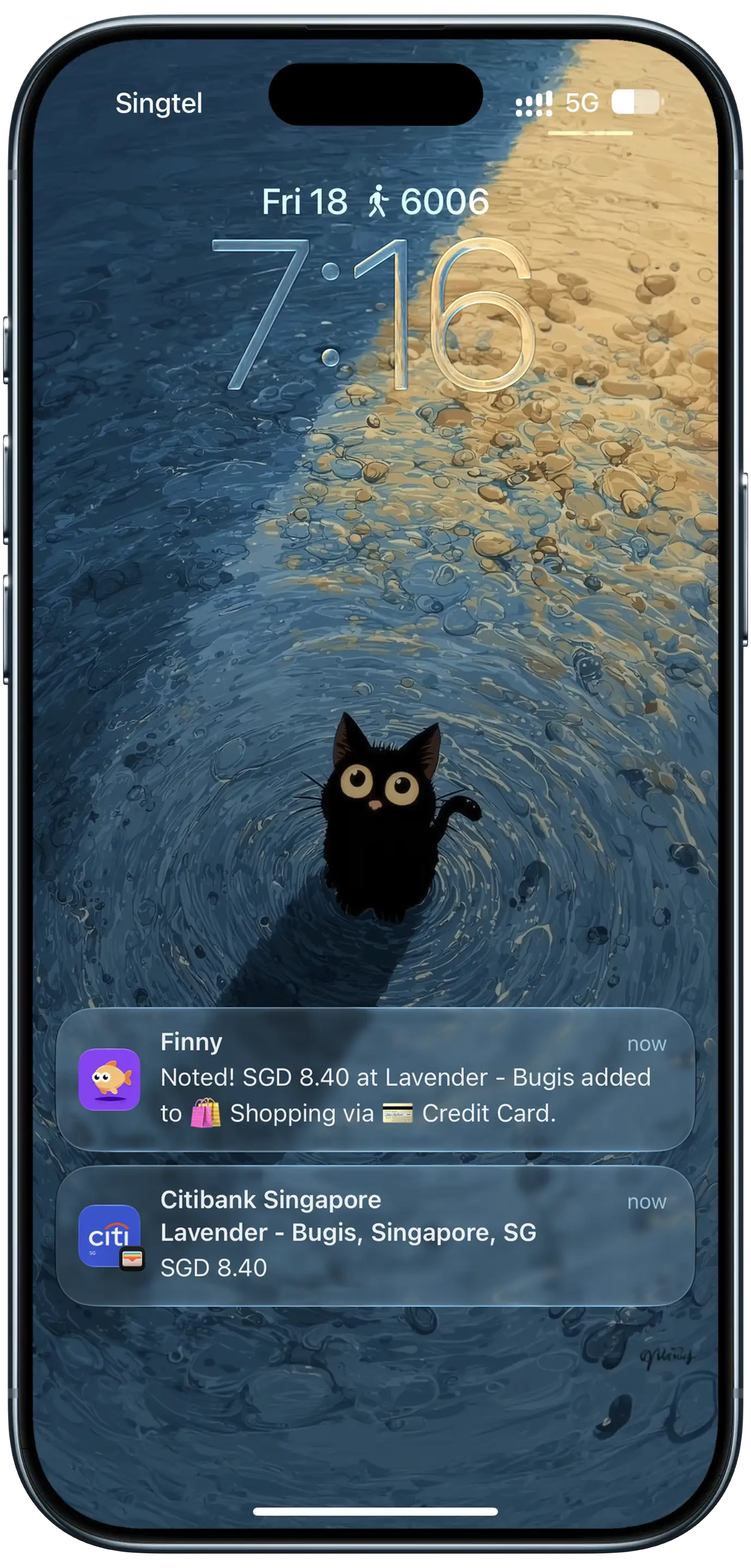
Finny app's Tap to Track feature
The screenshot above shows that kind of confirmation sitting on the lock screen, right above the bank's own alert. Each entry is filled in from the alert itself:
- Expense or income, whichever the alert says. A purchase alert becomes an expense; a deposit or "you've received" alert becomes income.
- Amount and currency come straight from the alert.
- Category and payment method are guessed from each alert. You can also set a category and card for each banking app, which is the way to get the right card every time, since many alerts name the bank but not the card.
Every entry is a normal one you can edit, recategorize, or delete. Only notifications from the apps you pick are read, and the notification itself is not kept. It needs iOS 27 and Finny Pro; see how Notification Log works and its limits.
Here is a short demo of a payment notification becoming an entry:
Count each purchase once
When you track from alerts, the rule that keeps your totals honest is simple: every purchase should reach your budget through exactly one source. A few situations break that rule without you noticing.
- Two alerts for one card. If a card sends both a push alert and a text, or you also log the receipt by hand, the same charge can be recorded twice. Pick one source per card and stick with it.
- Transfers between your own accounts. Paying a credit card from checking, or moving money to savings, sends an alert from each side. That is not spending, so leave it out of your expense totals.
- Apple Pay taps. Some banks alert on every Apple Pay tap. If you already record those taps another way, decide which source owns that card. If you want to understand why one tap can produce two signals in the first place, see our explainer on the hidden plumbing of Apple Pay.
- Refunds. Chase, for one, can alert you on refunds as well as charges. Record a refund as money coming back rather than deleting the original purchase, so your history matches your statement.
Some alerts also leave out who was paid, so an entry can end up with a generic name. The amount is still right, and a quick rename keeps your history readable.
Seeing every bank in one place
The real payoff of turning alerts into entries is that your banks stop living in separate apps. Chase alerts, Capital One alerts and Wells Fargo alerts all become entries in one list, each filed under its own card.
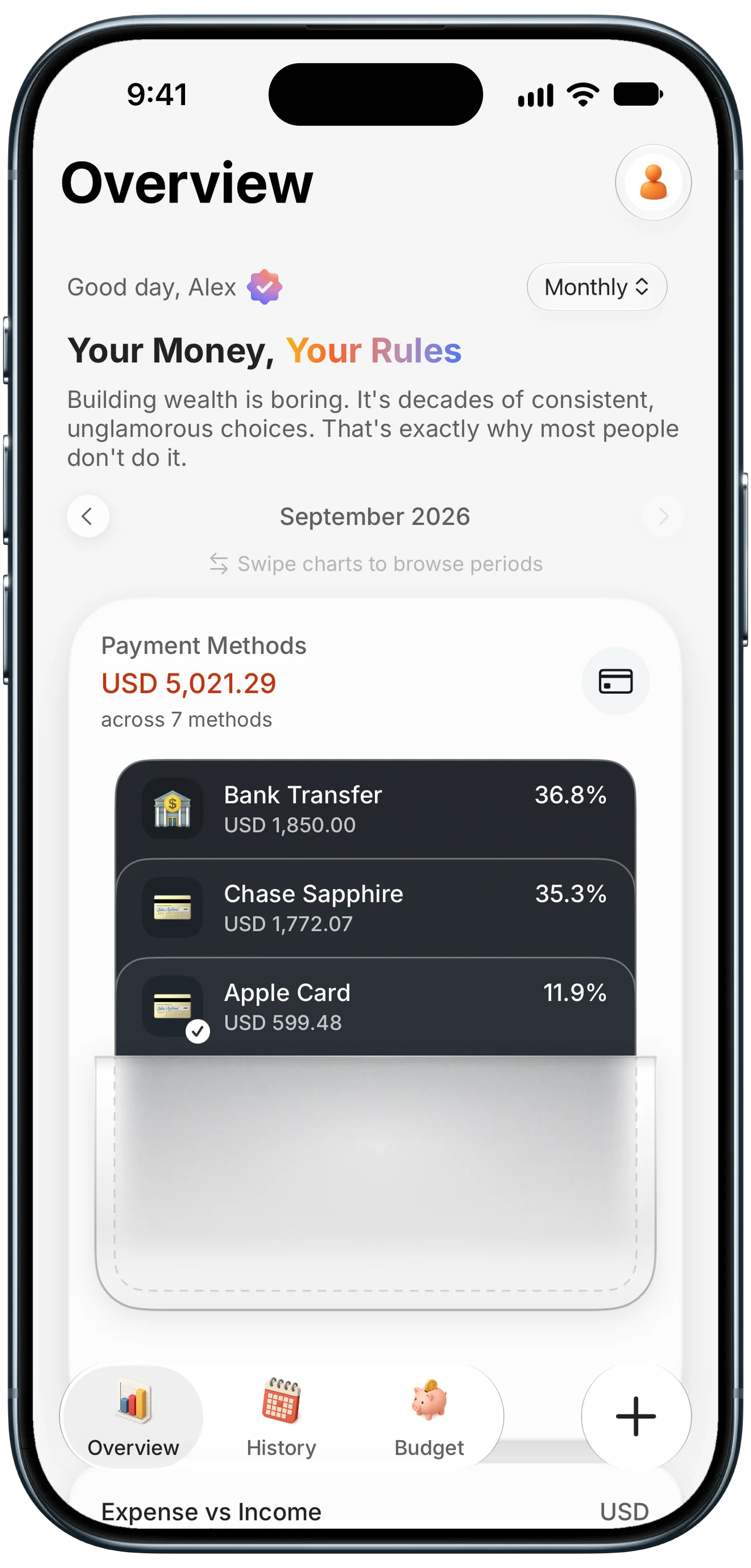
Finny app's Payment Methods feature
That makes questions that used to need three apps easy to answer: which card carried most of this month, how much went to dining across every account, whether a forgotten card has quietly picked up a subscription. Our guide to seeing your spending by credit card walks through that view.
If you travel, alerts in other currencies keep their original currency. Choose an expense tracker that converts everything into your home currency, so a trip on one card and daily spending on another still add up to one number.
Common Questions About Bank Transaction Alerts
How do I turn on Chase transaction alerts?
In the Chase Mobile app, tap the person icon, then Alerts & messages, then Manage alerts. Pick the account, turn on transaction alerts, and choose push notification as the delivery method. Chase lets you get an alert for every purchase or only for transactions over an amount you set. For tracking spending, choose every purchase so small charges are included.
Can I get an alert for every purchase on my credit card?
At many banks, yes. Chase offers alerts for every purchase, and Capital One's Instant Purchase Notification covers all purchases when you set the minimum to $0. Banks with threshold-based alerts, like Wells Fargo's Single Purchase Amount alert, let you choose the amount, so set it as low as the app allows. Choose push delivery so the alert reaches your iPhone right away.
Can bank alerts be used as an expense tracker without linking my bank?
Yes. Turn on push alerts for every purchase in each bank app, then use an expense tracker that turns those alerts into entries. On iOS 27, Finny's Notification Log does this for the banking apps you pick, filing each alert as an expense or income with the amount and currency from the alert. Nothing connects to your bank and no login is shared. On older iOS versions, alerts still work as a reminder to log purchases yourself.
Why did one purchase show up twice in my budget?
Usually because two sources reported it. A bank that sends both a push alert and a text, a receipt you logged by hand on top of the alert, or a separate Apple Pay record can each add a second copy. Transfers between your own accounts can also appear twice, since each bank sends an alert for its side. Give every card one source of entries and the duplicates stop.
Ready to make your bank alerts count?
Download Finny to log expenses automatically, by voice, by text, or from receipts. No bank connections, totals in your home currency, and full control over your financial data.