Best iPhone Automations for Your Money in 2026
Most money mistakes are timing mistakes. The bill was due yesterday, the paycheck landed and got spent before any of it reached savings, the cart filled up at 11 PM. None of that is a knowledge problem. You knew. The reminder just did not show up at the right moment.
That is exactly what iPhone automations are good at. This list covers the best iPhone automations for money in 2026: eight you can build yourself in the Shortcuts app, each tied to a moment (a date, a place, an app, bedtime), plus the expense tracking you should not have to build at all. For shortcuts that log a purchase faster, see our Apple Shortcuts for expense tracking guide and the best money shortcuts for iPhone roundup. This one is about the moments around spending: payday, due dates, the mall, the month-end.
How iPhone automations work in 2026
An automation is a shortcut that runs on its own when something happens. Apple's Shortcuts User Guide groups the triggers into families, and the ones that matter for money are:
- Time of Day: a specific time, or sunrise or sunset, repeating daily, weekly on chosen days, or monthly on a chosen day of the month.
- Arrive and Leave: a location you pick, with an optional time range so it only fires during, say, weekend afternoons.
- App: when a chosen app is opened or closed.
- Sleep: when Wind Down or Bedtime begins, if you have a sleep schedule in the Health app.
- Settings triggers: Focus, Wi-Fi, Bluetooth, Battery Level, Charger, NFC tag and a few more.
In iOS 27 the Shortcuts app was rebuilt so a trigger is now the first action of a shortcut rather than a separate tab, and a single shortcut can have several triggers. An Automations page still lists everything so you can switch each one on or off. On iOS 26 and earlier, the same triggers live under the Automation tab. Our guide to iOS 27 Shortcuts for money covers the rebuild, including the new Store Content actions that let a shortcut remember a number.
One setting matters for every automation below: whether it asks before running. If an automation keeps waiting for a tap, our guide to fixing automations that ask to confirm covers it.
1. Payday: pay yourself first
Trigger: Time of Day, Monthly, on your payday, at 9:00 AM. Actions: Show Notification ("Payday. Move $300 to savings before anything else."), then Open App with your bank's app.
The best savings habit is moving money the morning it arrives, before it has a chance to look available. This automation does not move the money (Shortcuts cannot log in to your bank), but it puts the bank app in your hand at the right minute.
Paid every two weeks? The Time of Day trigger repeats daily, weekly or monthly, not biweekly. The workaround on iOS 27: set it to weekly on your payday, then use Get Stored Content to read a stored "on" or "off" value, show the notification only when it is "on", and Store Content the opposite value for next week. It flips every Friday and fires every other one.
If your month should run from payday to payday instead of the 1st to the 31st, an app with a custom month start does the same job on the budgeting side; our budget apps with a custom month start guide compares them.
2. Bill due reminders that arrive early
Trigger: Time of Day, Monthly, three days before each due date. Actions: Show Notification with the bill name, amount and the account it comes out of.
Three days, not one. A reminder on the due date is a late-fee warning; a reminder three days out is enough time to move money if the account is thin. Make one automation per due date, or group bills that fall in the same week into one notification ("Rent, phone and car insurance this week: $2,140").
The Reminders app is a fine alternative if you would rather tick bills off: a repeating reminder with an early alert does the same job. The automation wins when you want it to open the biller's app or a payment page. Our guide on how to never miss a bill payment covers autopay and the rest of the system.
3. Arrive at the mall: a budget nudge
Trigger: Arrive, at the mall or a store you overspend in, with a time range for when you usually shop. Actions: Show Notification ("You have $120 left for shopping this month.").
This one has the most leverage, because it interrupts spending at the door instead of after the receipt. Keep the message short: a number works better than a lecture.
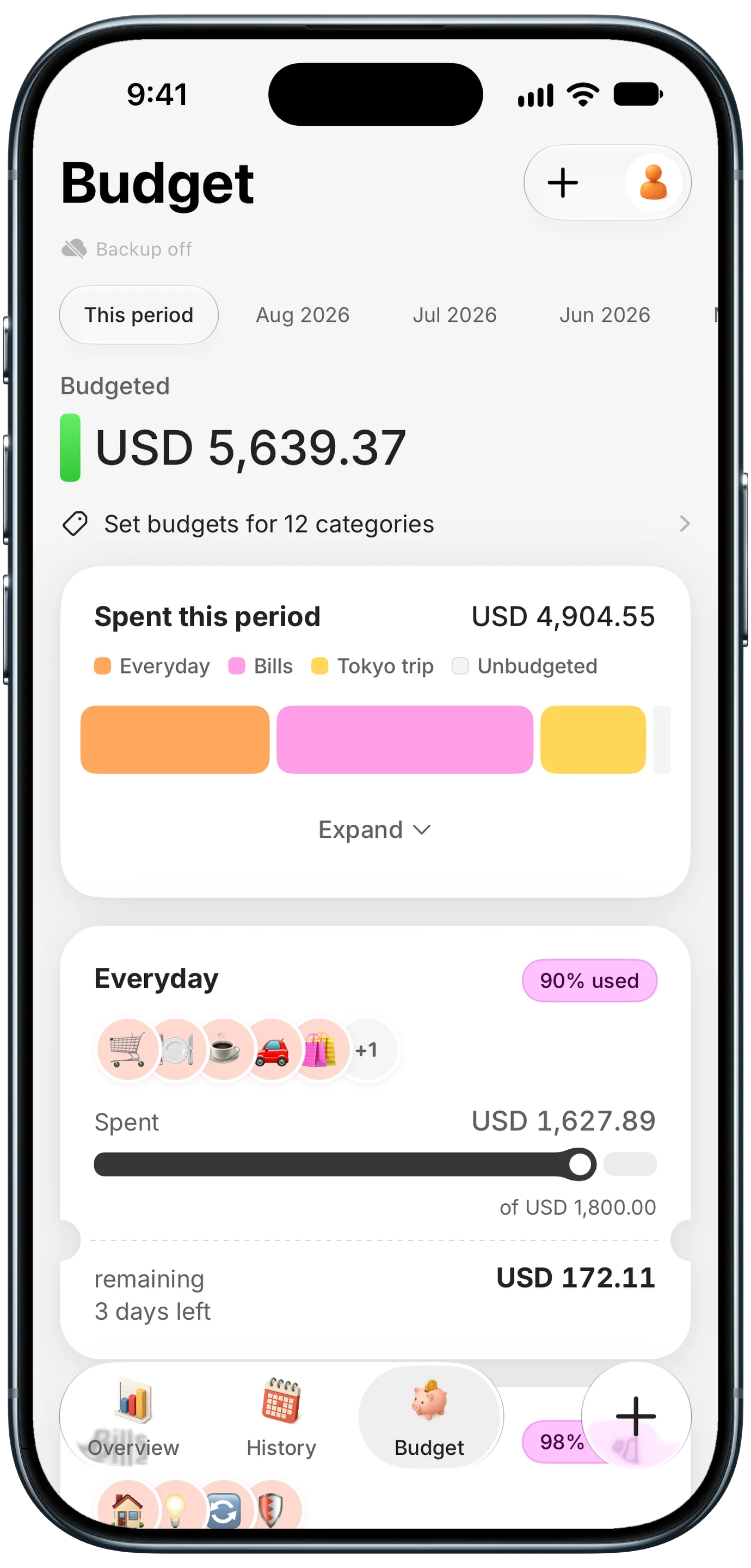
Finny app's Budgets feature
To keep the number current, update it in a single place. On iOS 27, a small companion shortcut can Store Content your remaining shopping budget, and the arrival automation reads it with Get Stored Content. If your budget already lives in an app, glance at that instead.
Location triggers can take a minute or two to fire after you arrive, so set the geofence around the parking lot rather than the store entrance.
4. Open a shopping app: the pause
Trigger: App, when Amazon (or Target, Temu, a food delivery app) is opened. Actions: Choose from Menu with the prompt "Is this on your list, or can it wait 24 hours?" and two options. "It can wait" runs Go to Home Screen; "It is on my list" does nothing, so the app stays open.
Unlike the open-app logging trick, which asks you to record a purchase, the pause is about the purchase not happening. A two-second question is enough friction to break an impulse loop.
Use it on one or two apps, not ten. An alert you see twenty times a day stops being read.
5. Sunday evening: the weekly check-in
Trigger: Time of Day, Weekly, Sunday, 7:00 PM. Actions: Show Notification ("Five-minute money check: open your spending."), then Open App with your expense tracker.
A weekly look at your spending is where tracking turns into decisions. Five minutes on Sunday evening shows which category is running hot before the month is half gone. Pick a time when you are usually on the couch, and keep it the same every week.
If you share money with a partner, this is also a natural slot for a short money date. Point the automation at both phones.
6. A low-balance check you do not have to remember
Trigger: Time of Day, Weekly, the day before your biggest bill usually clears. Actions: Ask for Input (Number: "Checking balance?"), If the answer is less than your floor, Show Notification ("Below $500. Move money from savings today."). Otherwise, do nothing.
Shortcuts cannot read your bank balance, so this one asks you. That is a limitation, but opening your bank app once a week to answer it is the point.
Pair it with the real thing: most US banks offer a low-balance alert in their own app or website, under alerts or notification settings. Turn that on as the safety net, and keep this automation as the weekly habit.
7. Wind Down: no shopping after bedtime
Trigger: Sleep, when Wind Down begins. Actions: Set Focus, turning on a Focus you have set up to hide shopping and delivery apps from the Home Screen.
Late-night browsing is where a lot of regret purchases start. Create a Focus (call it "No Shopping") in Settings, choose a Home Screen page without your shopping apps, and let Wind Down switch it on. Make a second automation on Waking Up that turns the Focus off. Nothing is blocked. The apps are simply not in front of you when your judgment is at its lowest.
8. Month-end sweep to savings
Trigger: Time of Day, Monthly, on the 28th. Actions: Show Notification ("Month-end: sweep what is left in checking to savings."), then Open App with your bank.
The 28th exists in every month, so this never skips February. Whatever is left above your floor goes to savings or to a sinking fund for something you know is coming: car registration, holidays, the annual subscription that renews in March.
The eight at a glance
| Automation | Trigger | What it does | Needs |
|---|---|---|---|
| Payday pay-yourself-first | Time of Day, monthly | Reminds you to move savings, opens bank app | Any iPhone (biweekly version: iOS 27) |
| Bill due reminders | Time of Day, monthly | Warns three days before each bill | Any iPhone |
| Mall budget nudge | Arrive, with time range | Shows what is left to spend | Any iPhone |
| Shopping app pause | App opened | Asks if it can wait 24 hours | Any iPhone |
| Weekly check-in | Time of Day, weekly | Opens your expense tracker | Any iPhone |
| Low-balance check | Time of Day, weekly | Asks for your balance, warns below a floor | Any iPhone |
| No shopping after bedtime | Sleep, Wind Down | Turns on a Focus that hides shopping apps | Sleep schedule in Health |
| Month-end sweep | Time of Day, on the 28th | Reminds you to move leftovers to savings | Any iPhone |
On an iPhone 15 Pro or any iPhone 16 or later running iOS 27, you can also type a description such as "every month on the 15th, remind me to pay rent and open my bank app" and let Describe a Shortcut assemble it. Check the result before you rely on it.
Automations you do not have to build
Every automation above is a reminder, good at getting you to look at the right moment. None of them can tell you what you actually spent, because a shortcut does not know about the $14 lunch, the $62 gas fill-up or the transfer your roommate sent for rent. That record is the part worth handing to an expense tracker app, and a good one now fills itself in.
In Finny, that record comes from a few places, none of which need a bank connection:
- Notification Log. Payment notifications from the apps you pick, such as your bank's "you paid" or "you've received" alert, become expense or income entries, with the amount and currency from the notification. It needs iOS 27 and Finny Pro; see how Notification Log works and its limits.
- Tap to Track. Card payments get logged as you make them.
- Screen Log. A payment showing on your screen, like an online order confirmation or a bank transfer, gets logged from what is on screen.
- Quick Log. When you pay cash, you can log the amount without opening the app.
This short clip shows a payment alert becoming an entry.
Widgets put your month's income, spending and budgets on the Home Screen, so a weekly check-in often takes ten seconds. Our roundup of Lock Screen budget widgets covers the options.
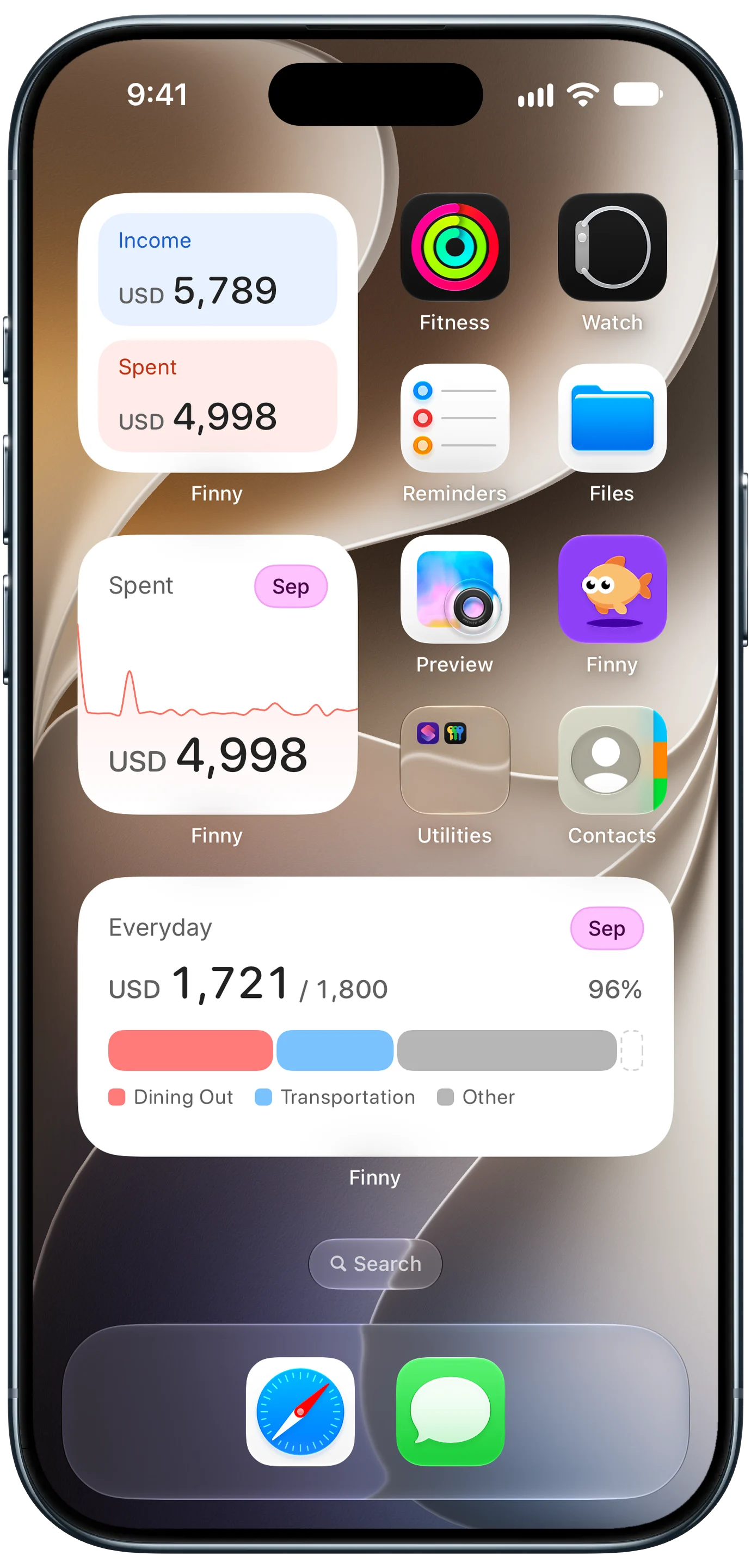
Finny app's Home Screen widgets feature
Entries keep their original currency while totals convert to your home currency, so a trip abroad does not break the month: a JPY dinner and a USD Uber land in one total in USD.
The split that works for most people: build the reminders yourself, because they are personal (your payday, your mall, your bills), and let the tracking run itself, because that is the part nobody keeps up by hand.
Common Questions About iPhone Money Automations
What are the best iPhone automations for saving money?
The ones tied to a moment you would otherwise miss: a payday reminder to move savings first, bill reminders three days before each due date, a budget nudge when you arrive at a store you overspend in, and a month-end reminder to sweep leftovers into savings. All four use Time of Day or Arrive triggers in the Shortcuts app and work on any recent iPhone.
Can an iPhone automation run without asking me first?
Yes, for most triggers. Personal automations can be set to run without confirmation, so a Time of Day or Arrive automation fires on its own. If yours keeps asking, check the automation's run setting. In iOS 27 automations live inside shortcuts as triggers, and the Automations page lists them so you can switch each one on or off.
Can Shortcuts check my bank balance automatically?
No. Shortcuts cannot sign in to your bank or read your balance. A workaround is a weekly automation that asks you for the balance and warns you if it is below a floor you set. For a real alert, turn on the low-balance notification most US banks offer in their own app or website.
Do iPhone money automations work on older iPhones?
Most do. Time of Day, Arrive, Leave, App and Sleep triggers work on any iPhone that runs a current iOS. Describing a shortcut in plain English needs an iPhone 15 Pro or any iPhone 16 or later on iOS 27, and the Store Content actions used for a biweekly payday reminder need iOS 27, which runs on iPhone 11 and later.
Can an iPhone automation track my spending for me?
A shortcut can remind you to log, but it cannot see your purchases, read your bank or know what a receipt said. For a record that fills itself in, use an expense tracker app that captures payments for you, for example by logging card payments as you make them or, on iOS 27, turning payment alerts from your bank into entries. Look for one that does this without a bank connection.
Build the reminders. Let the tracking run itself. Finny logs card payments, payment alerts, on-screen payments and receipts, totals them in your home currency, and never connects to your bank. Free to start, Pro at a low monthly price.